Best Settings for Star Wars Outlaws on PS5 and Xbox in 2026
Optimize Star Wars Outlaws on console by switching to 16:9 aspect ratio and choosing the right graphics mode for smooth 40fps gameplay.
Since its release, Star Wars Outlaws has become a go-to open-world adventure for fans of the galaxy far, far away. However, the out-of-the-box experience on PlayStation 5 and Xbox Series X|S still leaves many players scratching their heads due to unusual default settings and a somewhat confusing graphics menu. By 2026, several patches and community discoveries have smoothed out many technical hiccups, but tweaking the visual and performance options remains essential to get the most out of Kay Vess’s journey. Here’s how to dial in the perfect setup.
Why the Default Aspect Ratio Must Change Immediately
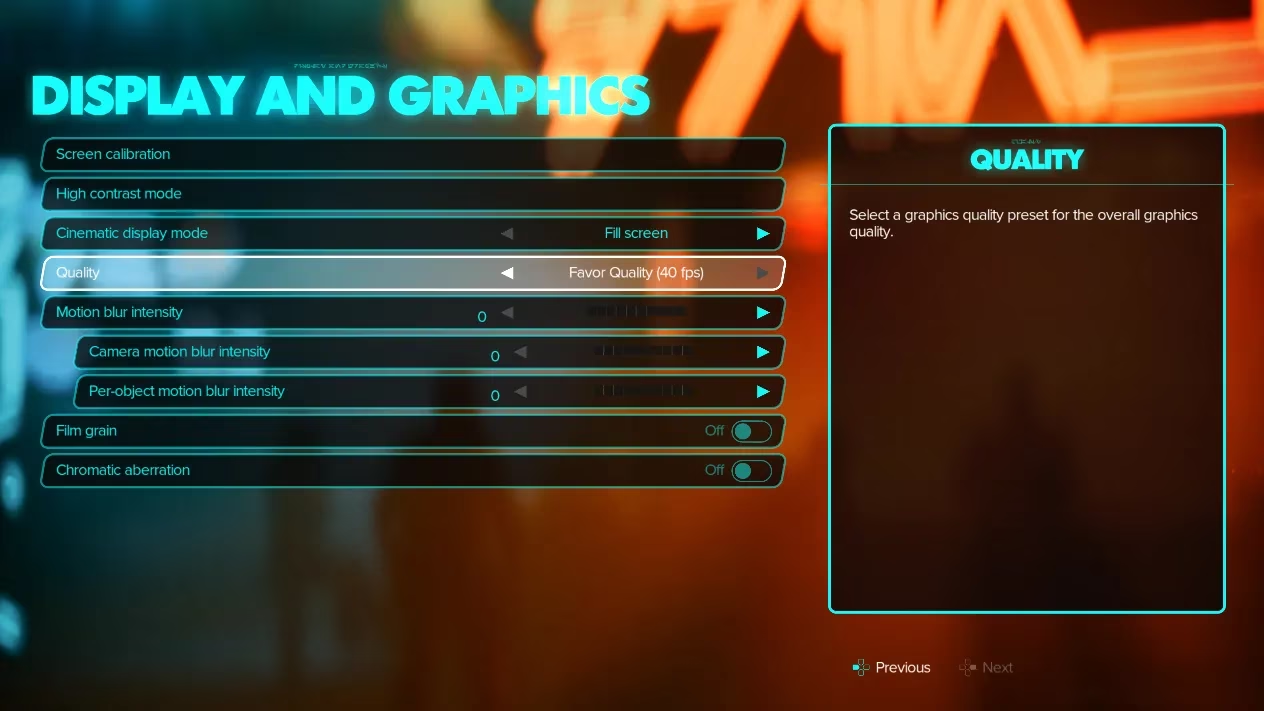
The very first thing every player should do is switch from the default 21:9 ultra‑wide aspect ratio to 16:9. For reasons known only to the developers, the console versions ship with a cinematic letterbox mode that crops the top and bottom of the screen. While this can look visually striking, it severely impacts gameplay. In 21:9, you lose a significant chunk of vertical information—Kay’s cover animations become obscured, enemies can flank from areas you literally cannot see, and navigating dense environments like Mirogana’s alleys turns into a guesswork exercise.
Selecting 16:9 fills the entire modern television or monitor, restoring full situational awareness. An added bonus is a slight performance lift because the game no longer needs to render an artificially widened frame. After two years of community testing, this single change is universally praised as the most impactful adjustment you can make.
Quality Mode vs Performance Mode: A More Nuanced Picture in 2026
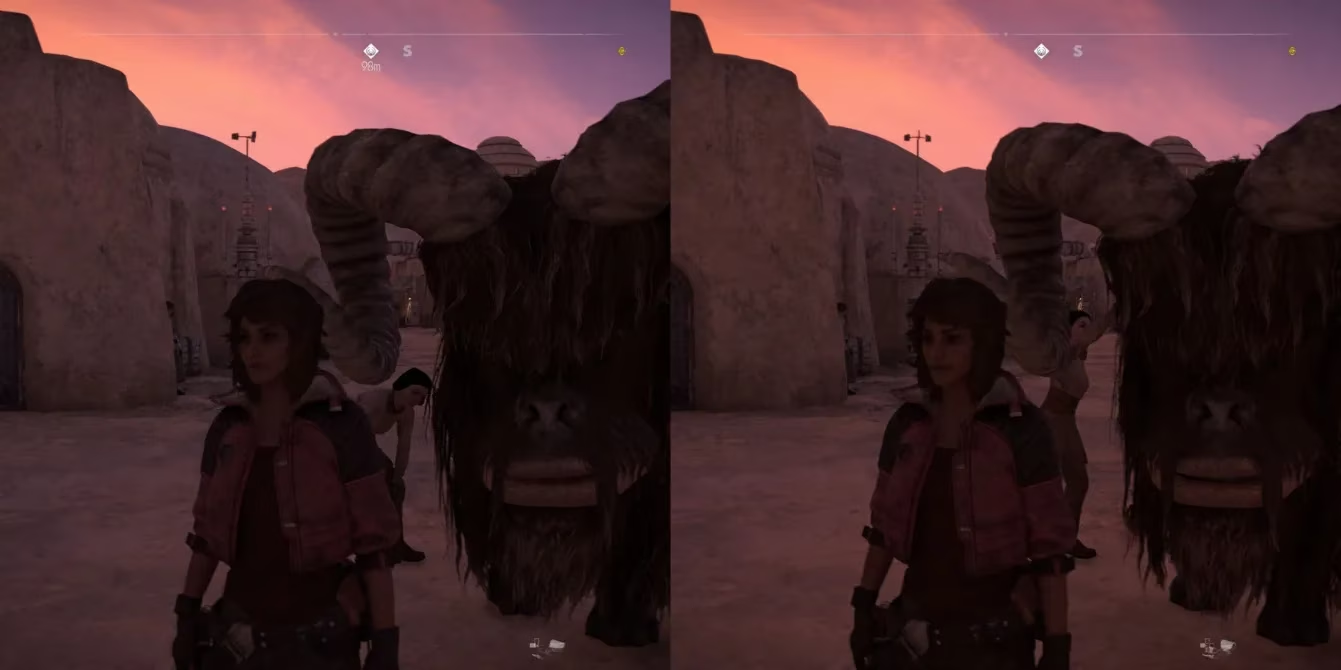
Star Wars Outlaws still offers two primary display modes, but interpreting their benefits requires looking at your display hardware. Quality Mode is the default choice, targeting 30 frames per second with a crisper resolution and richer visual effects like ray‑traced shadows. The real magic, however, happens if your TV or monitor supports 120Hz signals and variable refresh rate technology.
The 40fps Sweet Spot
In a welcome trend that has only grown more common by 2026, many consoles games offer a 40fps option when connected to a 120Hz display. Outlaws automatically detects this capability and unlocks a balanced mode that runs at roughly 40 frames per second inside Quality Mode. This provides a night‑and‑day fluidity improvement over 30fps while retaining nearly all of the visual bells and whistles. It has become the gold standard recommendation for players with a modern OLED or gaming monitor that supports HDMI 2.1.
Performance Mode, on the other hand, aims for 60fps by lowering resolution and dialing back some graphical features. Post‑launch patches have stabilized the framerate on PlayStation 5 and Xbox Series X, so hitting that target is now consistent across most situations. The exception remains the Xbox Series S, which struggles to maintain 60fps and often drops resolution below 1080p due to its weaker GPU. For Series S owners, locking the game to Quality Mode and living with 30fps—or using a 40fps-capable display—delivers a more consistent experience.
Below is a quick reference for what each mode offers in 2026 on the three consoles:
| Console | Mode | Target FPS | Resolution Notes |
|---|---|---|---|
| PS5 / Xbox Series X | Quality | 30 (40 with 120Hz display) | Dynamic 4K, full ray tracing |
| PS5 / Xbox Series X | Performance | 60 | Dynamic 1440p upscaled, reduced effects |
| Xbox Series S | Quality | 30 | Dynamic 1080p, limited ray tracing |
| Xbox Series S | Performance | Assumes 60 but often unstable | Drops to 900p or lower during action |
Post‑Process Effects to Disable or Reduce
Two settings continue to generate heated forum debates even years after launch: motion blur and film grain. Out of the box, both are set to levels that can make the image look smeared and noisy. The recommendation from the competitive and casual community alike is to either turn them off completely or, if you insist on a cinematic touch, lower them to about 20‑30%.
Disabling motion blur clarifies movement during fast chases on the speeder bike, while turning off film grain removes a layer of artificial grit that often masks fine environmental details. With these off, the game’s HDR implementation—improved by patches—shines, giving planets like Toshara and Akiva a vibrant, clean look.
Fine‑Tuning for Your Setup: A Step‑by‑Step Checklist
To wrap up the essential adjustments, here’s a clear sequence that veteran players and guide writers now suggest:
-
Set aspect ratio to 16:9 immediately.
-
If your display supports 120Hz and VRR, enable it at the system level and select Quality Mode; the game will automatically offer 40fps. If your display is 60Hz only, decide between Quality (30fps) and Performance (60fps).
-
Go to the graphics menu and turn off motion blur and film grain, or set them below 30%.
-
Keep depth of field on if you enjoy a cinematic focus effect; disable it if you prefer a uniformly sharp image during dialogue.
-
Consider reducing controller sensitivity slightly—around 8‑12 on the slider—for smoother aim with Kay’s blaster.
-
Enable performance HUD if available, to monitor real‑time frame rate when testing different modes.
These tweaks do not require any modding or hidden menus, yet they transform the feel of the game. Players who previously abandoned Outlaws citing a sluggish or disorienting presentation often return after making these changes and describe a completely different experience.
Looking Ahead: Will Ubisoft Add New Options?
As 2026 progresses, rumors swirl that Massive Entertainment is working on a next‑gen update to further exploit the capabilities of the PS5 Pro and any mid‑gen Xbox refresh. Leaked patch notes mention a potential 120fps performance mode for competitive speeder races, though such a feature would likely require a display upgrade for most players. For now, the settings outlined above represent the most stable, visually pleasing, and widely endorsed way to explore the Outer Rim. With a few minutes spent in the menu, Star Wars Outlaws can truly live up to its blockbuster promise.