How to Remove Black Bars and Optimize Frame Rate in Star Wars Outlaws
Star Wars Outlaws players can fix black bars by changing the Cinematic Display Mode to 'Fill Screen' in video settings, reclaiming full-screen immersion.
As a player diving into the vast galaxy of Star Wars Outlaws in 2026, I was immediately struck by its cinematic presentation. The game launches with a default 21:9 ultrawide aspect ratio, a deliberate choice by the developers to evoke the feeling of an epic space opera film. For those of us with dedicated ultrawide monitors, this is a fantastic feature. But what about the majority of players, myself included at first, who are gaming on standard 16:9 displays? The initial experience comes with a significant compromise: prominent black bars at the top and bottom of the screen.
Isn't it frustrating when a portion of your screen isn't being used? These letterbox bars, while perhaps appealing to cinema purists, occupy about 25% of the screen real estate on a typical 16:9 monitor or TV. For a game as visually dense and action-packed as Outlaws, that's a lot of potential gameplay space lost. I found myself wondering, "Surely there must be a way to reclaim my full screen?" Fortunately, the solution is straightforward and built right into the game's settings.
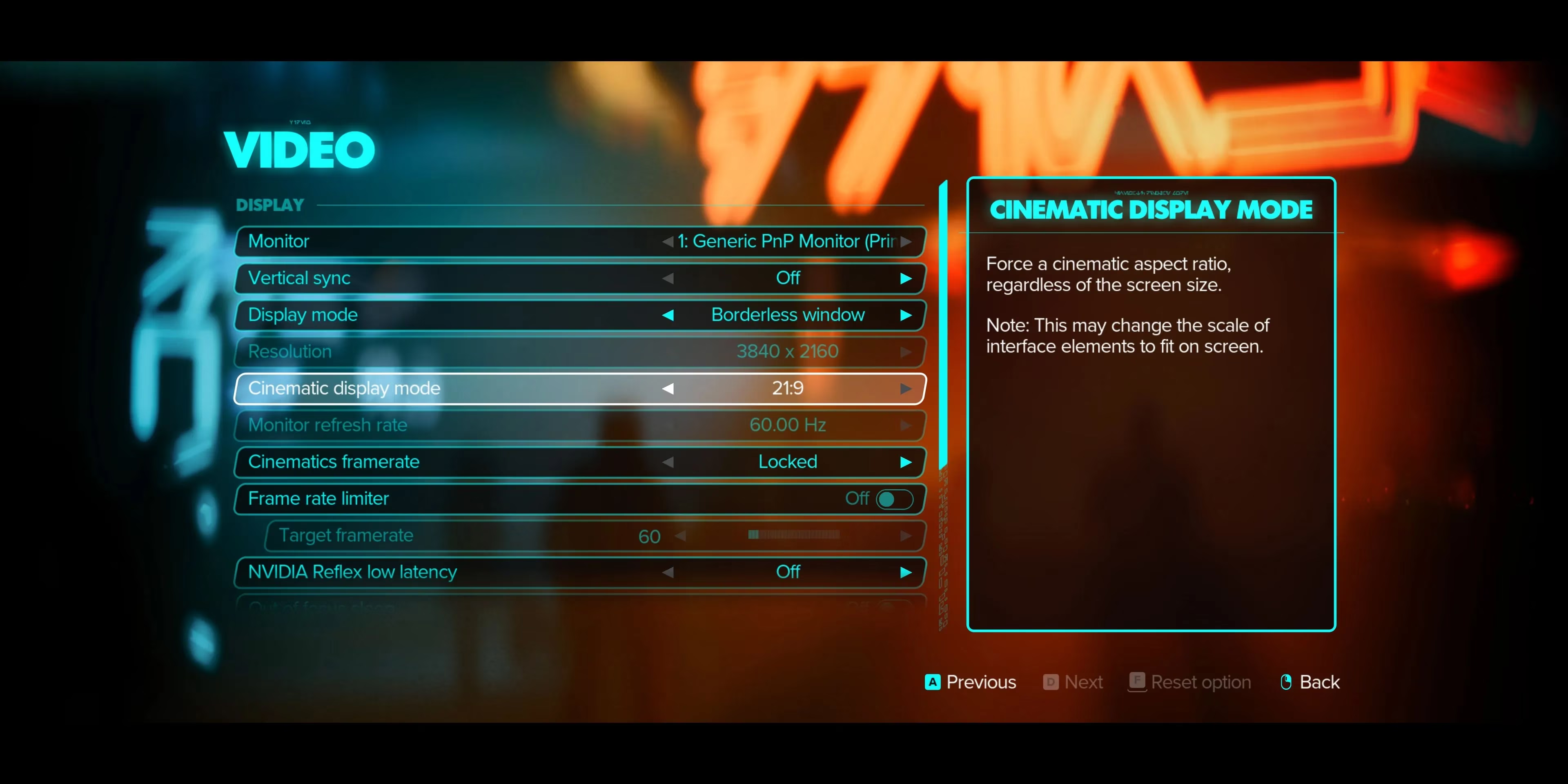
Reclaiming Your Screen: The Simple Fix
The process to remove the black bars is incredibly simple and takes just a few moments. Here’s exactly what I did:
-
I paused the game and navigated to the Settings menu.
-
From there, I selected the Video or Display settings tab.
-
I scrolled down until I found the option labeled "Cinematic Display Mode" or "Aspect Ratio".
-
By default, this was set to "21:9" to maintain the cinematic look.
-
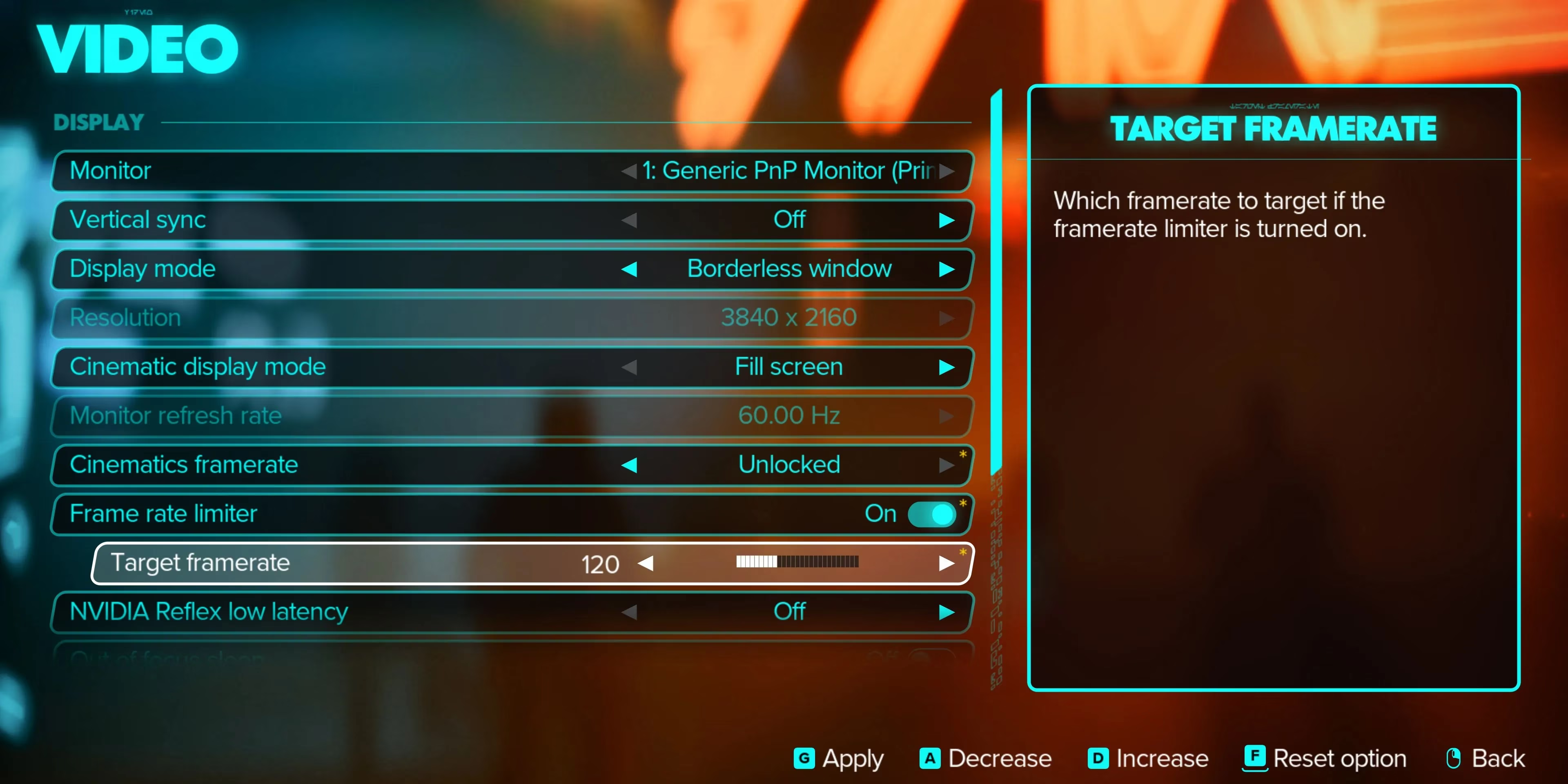
I changed the setting to "Fill Screen" or "16:9".
Immediately upon applying the change, the black bars vanished, and the game expanded to use the full height of my monitor. The transformation was significant! The interface felt more immersive, and I had a much wider vertical field of view, which is crucial for spotting enemies and navigating environments.
It's worth noting the trade-off. By switching to "Fill Screen," the game essentially crops the top and bottom of the original 21:9 image to fit a 16:9 frame. You're not seeing more on the sides, but you are seeing more vertically. For ultrawide monitor users, leaving the setting on 21:9 is ideal, as it perfectly matches their native display without any cropping or stretching.
Beyond Aspect Ratio: Smoothing Out Your Adventure
Fixing the black bars was my first priority, but while in the Video settings menu, I discovered another powerful tool for enhancing gameplay: the Frame Rate Limiter. Star Wars Outlaws is a demanding game, and even in 2026, not every system can push unlimited frames without issue.
Why would you want to limit your frame rate? Imagine you have a monitor with a 60Hz refresh rate, but your powerful PC is rendering the game at 90 FPS. This mismatch can sometimes cause screen tearing or inconsistent frame pacing, making the game feel less smooth. A limiter can lock the frame rate to a specific target, like 60 FPS, ensuring a stable and consistent experience.
Here’s how to access and use this feature:
-
Navigate to the Video settings, often in the same sub-menu as the aspect ratio option.
-
Look for "Frame Rate Limit," "Target FPS," or "V-Sync" options.
-
You can typically choose from presets like 30, 60, 90, or 120 FPS, or set a custom limit.
-
Enabling V-Sync (Vertical Synchronization) is another method, though it can sometimes introduce input lag.
I'd recommend using the frame rate limiter if:
-
You experience stuttering or sudden frame rate drops.
-
Your GPU is running at 99% usage and getting very hot; a limiter can reduce its workload.
-
You want to match your game's FPS to your monitor's refresh rate for optimal smoothness.
For players whose rigs meet or exceed the 2026 recommended specs, you might not need to touch this. But for anyone troubleshooting performance, it's an invaluable setting.
My Optimized Setup for 2026
After tweaking these settings, my gameplay experience improved dramatically. To summarize my ideal configuration on a standard 16:9 gaming monitor:
| Setting | My Recommendation | Reason |
|---|---|---|
| Cinematic Display | Fill Screen (16:9) |
Eliminates black bars, uses full screen. |
| Frame Rate Limit | 60 FPS (or match monitor refresh rate) |
Ensures buttery-smooth, consistent performance. |
| V-Sync | Off (using Frame Limit instead) |
Avoids potential input lag. |
Making these two simple changes—removing the cinematic black bars and setting a sensible frame rate target—allowed me to fully immerse myself in the life of a scoundrel on the edge of the Star Wars galaxy. The game looked better and played smoother, letting me focus entirely on the heists, dogfights, and dealings with iconic syndicates. So, if you find the black bars intrusive or your performance a bit shaky, don't hesitate to dive into the settings. A few clicks can make your Star Wars Outlaws adventure infinitely more enjoyable. After all, shouldn't your view of the galaxy be as expansive and stable as possible? :rocket: